Loading...
Searching...
No Matches
Your first app
Deki also makes apps for devices: dashboards, tools, controllers. This one is a countdown timer with a dial, a slider and a button.
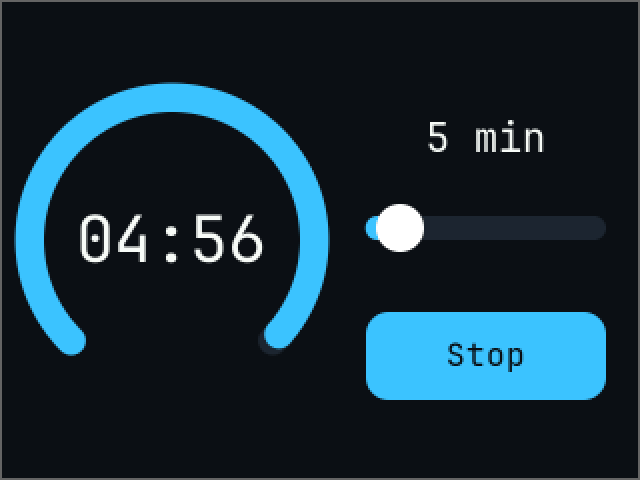
The finished timer, counting down
It starts from a new project: see Getting started. The Inspector shows sizes in pixels, with 16 pixels to the meter by default.
Lay out the screen
Every widget is a component on an object. Adding one makes its parts as children, and each part can be coloured on its own.
- Delete Sky, and set the Camera's Clear Color to #0B0F14.
- Rename Hello to Readout. Set its position to -74, 0, Width to 144, Height to 64, Align to Center, Font Size to 32, Sorting Order to 10 and its text to 05:00.
- Make an empty object called Ring at -74, 0 and add an Arc Component. Set Size to 157, Thickness to 14, Value to 100, and turn off Interactive. In its children, colour Track #1C2530 and Indicator #3BC3FF.
- Duplicate Readout and name it Minutes Label. Set its position to 83, 51, Width to 128, Height to 32, Font Size to 20 and its text to 5 min.
- Make an empty object called Minutes at 83, 6 and add a Slider Component. Set Min Value to 1, Max Value to 30, Value to 5, Step to 1 and Width to 120. In its children, colour Track #1C2530, Fill #3BC3FF and Knob white.
The button
A button is an object with something to see and an area to press.
- Make an object called Start at 83, -58.
- Add a Shape Component. Set Width to 120, Height to 44, Corner Radius to 11, Color to #3BC3FF and Sorting Order to 5.
- Add an Input Collider with the same Width and Height.
- Add a Button Component and set its Input Collider field to this object.
- Duplicate Minutes Label, drag the copy onto Start and name it Label. Set its position to 0, 0, Width to 120, Height to 44, Font Size to 16, Color to #0B0F14, Sorting Order to 6 and its text to Start.
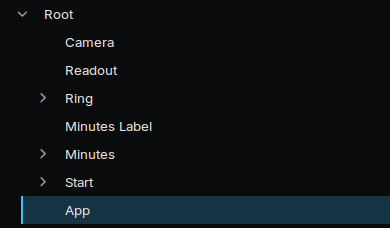
The objects in the Hierarchy
The code
Make an empty object called App, create a script called TimerApp, and replace its files.
src/TimerApp.h:
#pragma once
#include <deki/Engine.h>
#include <deki/reflection/ObjectRef.h>
#include "ArcComponent.h"
#include "ButtonComponent.h"
#include "SliderComponent.h"
#include "TextComponent.h"
DEKI_CATEGORY("App")
DEKI_DESCRIPTION("A countdown timer.")
class TimerApp : public Deki::Component
{
public:
Deki::ObjectRef<Deki2D::TextComponent> minutesLabel;
Deki::ObjectRef<Deki2D::ButtonComponent> startButton;
Deki::ObjectRef<Deki2D::TextComponent> startLabel;
void Start() override;
void Update() override;
private:
void SetMinutes(float value);
void StartOrStop();
void Show(int secondsLeft);
bool m_Running = false;
float m_Total = 0.0f;
float m_Left = 0.0f;
int m_Shown = -1;
};
Definition AssetLookupTable.h:17
src/TimerApp.cpp:
#include "TimerApp.h"
#include <cmath>
#include <cstdio>
void TimerApp::Start()
{
minutes.Get()->AddOnValueChangedCallback([this](float value) { SetMinutes(value); });
startButton.Get()->AddOnClickCallback([this]() { StartOrStop(); });
SetMinutes(minutes.Get()->GetValue());
}
void TimerApp::SetMinutes(float value)
{
char line[16];
std::snprintf(line, sizeof(line), "%d min", static_cast<int>(value));
minutesLabel.Get()->SetText(line);
if (!m_Running)
{
m_Total = value * 60.0f;
m_Left = m_Total;
Show(static_cast<int>(m_Total));
}
}
void TimerApp::StartOrStop()
{
m_Running = !m_Running;
startLabel.Get()->SetText(m_Running ? "Stop" : "Start");
m_Total = minutes.Get()->GetValue() * 60.0f;
m_Left = m_Total;
Show(static_cast<int>(m_Total));
}
void TimerApp::Update()
{
if (!m_Running)
{
return;
}
m_Left -= Deki::Time::GetDeltaTimeF() * 0.001f;
if (m_Left <= 0.0f)
{
m_Left = 0.0f;
m_Running = false;
startLabel.Get()->SetText("Start");
}
Show(static_cast<int>(std::ceil(m_Left)));
}
void TimerApp::Show(int secondsLeft)
{
// Only when the number changes: a screen that does not change costs nothing to draw.
if (secondsLeft == m_Shown)
{
return;
}
m_Shown = secondsLeft;
char line[16];
std::snprintf(line, sizeof(line), "%02d:%02d", secondsLeft / 60, secondsLeft % 60);
readout.Get()->SetText(line);
ring.Get()->SetValue(100.0f * secondsLeft / m_Total);
}
static float GetDeltaTimeF()
Duration of the last frame in milliseconds, with sub-millisecond precision.
Add the Timer App component to the App object and fill in its six fields.
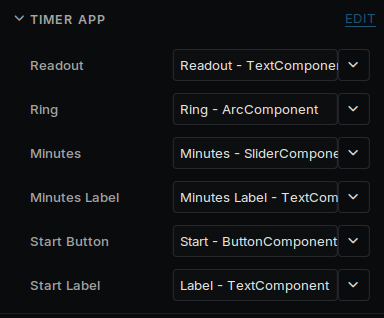
Timer App's fields in the Inspector
Save with Ctrl+S and press Run. Drag the slider, then press the button.
On a device
Turn on Redraw Changes in Project Settings → Rendering. Each frame then draws and sends only what changed, which here is a few digits and the end of the ring, once a second. Show helps by doing nothing until the number changes. The Speed tools show the difference.
Every widget also works without a touchscreen: Tab and the arrow keys move the focus, and Enter presses. See UI widgets.
To run it on one, follow the last part of Getting started.
Take it further
A second screen. Save another scene, then open it from a button:
settingsButton.Get()->AddOnClickCallback(
static Engine & GetInstance()
void OpenScene(const AssetRefBase &scene)
Opens the scene scene refers to (an AssetRef<Scene>) once this frame's updates are done: the scene be...
A setting. Add a Switch Component and listen to it:
sound.Get()->AddOnToggledCallback([this](bool on) { m_SoundOn = on; });
More widgets. Lists, dropdowns, charts, tabs and a text box with an on-screen keyboard are in UI widgets. To fit other screen sizes, see Screens.