読み取り中…
検索中…
一致する文字列を見つけられません
Input
このガイドはまだ翻訳されていません。
Keys, buttons and touch reach your code the same way on every device. Each device's page says what it has.
Is a key held down?
Check it in Update. This suits movement.
#include "DekiInput.h"
#include "Keys.h"
if (DekiInput::DekiInput::IsKeyPressed(DekiInput::Keys::Left))
{
MoveLeft();
}
Keys has Up, Down, Left, Right, Enter, Space, Esc and the letters and numbers.
Buttons and gamepads
A handheld's buttons and a desktop gamepad arrive as keys, the same keys on both, so a game made for one plays with the other.
| Button | Key |
|---|---|
| D-pad, left stick | Up, Down, Left, Right |
| A, Start | Enter |
| B | Esc |
| X | Space |
| Y | Tab |
| Select, Back | Backspace |
| L1, R1 (LB, RB) | q, e |
| L2, R2 (LT, RT) | z, c |
The Miyoo Mini's Menu button quits to the Miyoo's menu. A desktop build reads every connected gamepad, and the editor's Play view does too. Enable Gamepad on the SDL3 Input Setup turns it off.
The T-Deck's keyboard and trackball
The keyboard reports each key as it is typed, so a key is down for one frame. To walk while a key is held, turn on Report Held Keys on the I2C Keyboard in a copy of the board's boot scene: a key is then down for as long as it is held. It needs the keyboard's firmware to have that mode, which LilyGO's current one has.
The trackball moves a pointer, so it works with everything a finger works with. Its Mode set to Keys makes it the arrow keys and Enter instead. In either mode, TakeRoll gives how far it rolled since you last asked:
#include "Trackball.h"
if (DekiInput::Trackball* ball = DekiInput::Trackball::Find())
{
int32_t x = 0, y = 0;
ball->TakeRoll(x, y); // steps, right and down positive
}
Which input sent it?
Every event names its source in event.source:
| Source | What it is |
|---|---|
| SDL3 | A desktop build's keyboard and mouse |
| Gamepad | A desktop build's gamepads |
| Miyoo | The Miyoo Mini's buttons |
| I2CKeyboard | The T-Deck's keyboard |
| Trackball | The T-Deck's trackball |
| DekiDisplayTouch | A touchscreen |
| Injected, Injected pointer | The editor's Play view: its keyboard, gamepads and mouse |
DekiInput::DekiInput::GetInput("Miyoo") is not null when the device has that source, which tells a game what to show before anything is pressed.
Did a key just go down?
For a jump or a menu press, listen for the event, once, in Start. Stop listening when the component goes away.
// In the class:
size_t m_KeyListener = 0;
~Player() override;
void Player::Start()
{
m_KeyListener = DekiInput::DekiInput::RegisterEventCallback(
[this](const DekiInput::InputEvent& event)
{
if (event.type == DekiInput::InputEventType::KeyDown && event.key == DekiInput::Keys::Space)
{
Jump();
}
});
}
Player::~Player()
{
DekiInput::DekiInput::UnregisterEventCallback(m_KeyListener);
}
To read typing, use event.character. It is A for shift and the A key, where event.key is the A key either way.
Touch and mouse
A touch, a click and the T-Deck's trackball pointer all arrive as the Mouse events: MouseButtonDown, MouseMove, MouseButtonUp, with event.x and event.y in screen pixels.
For a button, use a Button Component: see UI widgets.
For anything else that can be pressed, add an Input Collider and set its size.
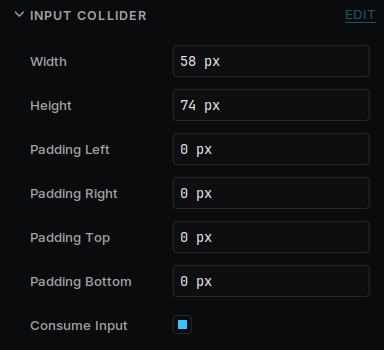
An Input Collider in the Inspector
Padding makes a small control easier to hit without making it look bigger. Consume Input stops the press from reaching objects behind it.
#include "InputCollider.h"
void Target::Start()
{
auto* area = GetOwner()->GetComponent<DekiInput::InputCollider>();
area->onPointerDown.push_back([](float x, float y)
{
// x and y are in meters, in the world.
});
}
onPointerUp, onPointerEnter, onPointerExit and onPointerMove work the same way.